In the menu bar
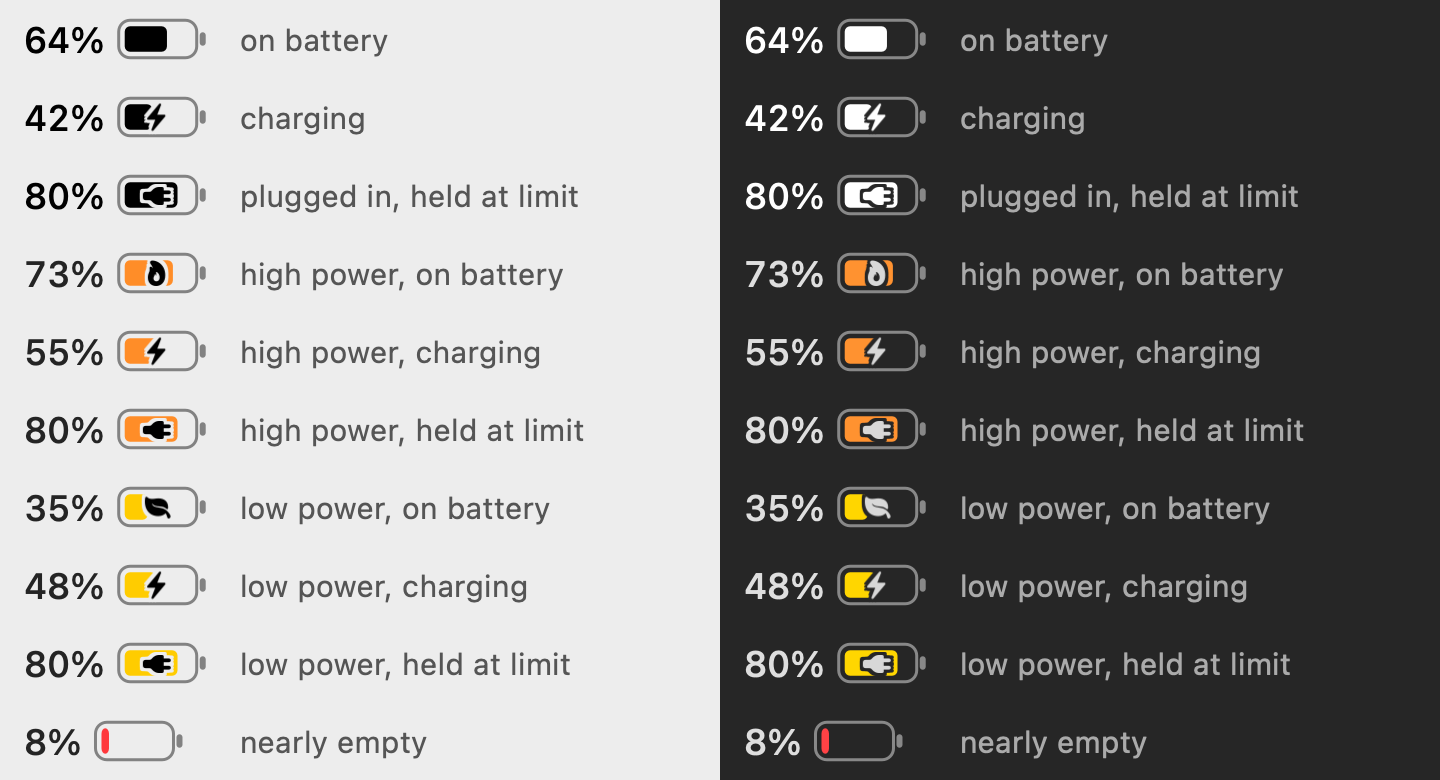
One battery icon that tells you everything.
It replaces the system battery. The colour is the power mode, and the symbol inside is what the battery is doing.
- Yellow: Low Power
- Orange: High Power
- Plain: Automatic
- Bolt when charging, plug when held at your limit
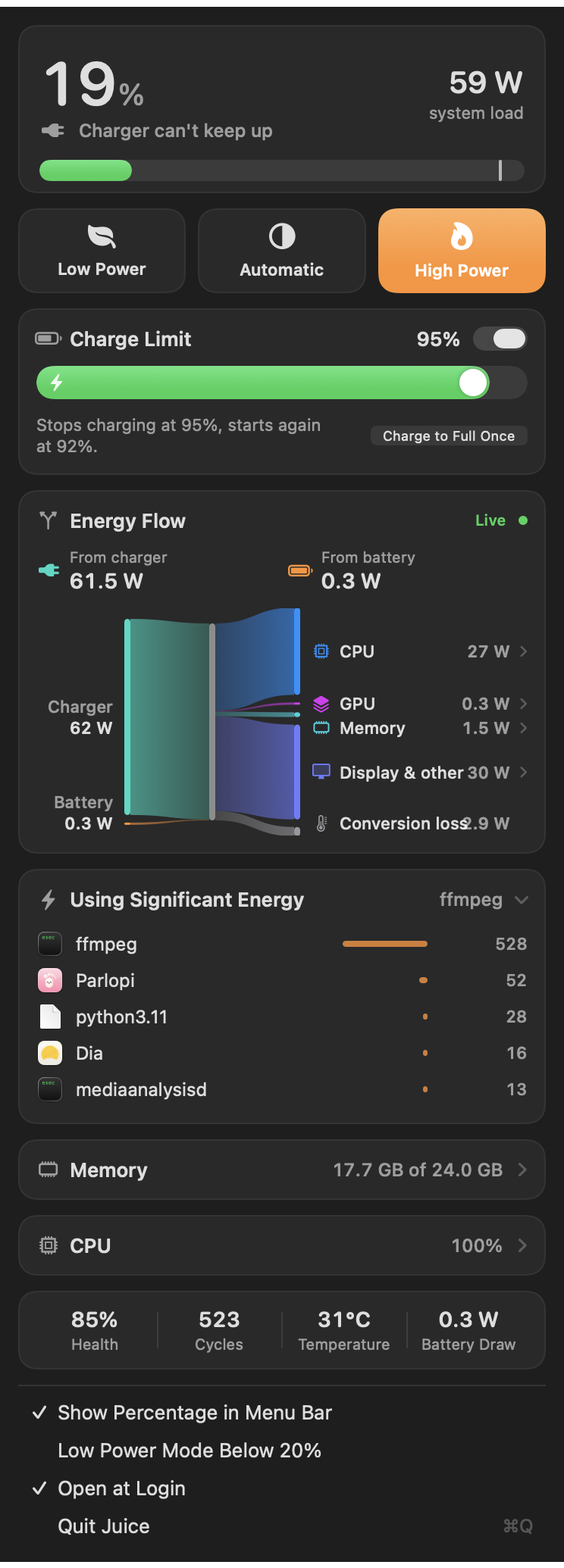
In the panel
Everything about your Mac's power, one click away.
Power modes
Low Power, Automatic and High Power as three buttons. No trip to System Settings. It can also drop to Low Power by itself below 20% and switch back when you plug in.
Charge limit
Pick any percentage from 40 to 100, one percent at a time. Charging stops there and starts again 3% lower. Need a full battery for a trip? Charge to full once, then it goes back.
Live energy flow
Watts in and watts out, refreshed every second from the Mac's own sensors: charger and battery on the left; CPU, GPU, memory, display and charging on the right.
One level deeper
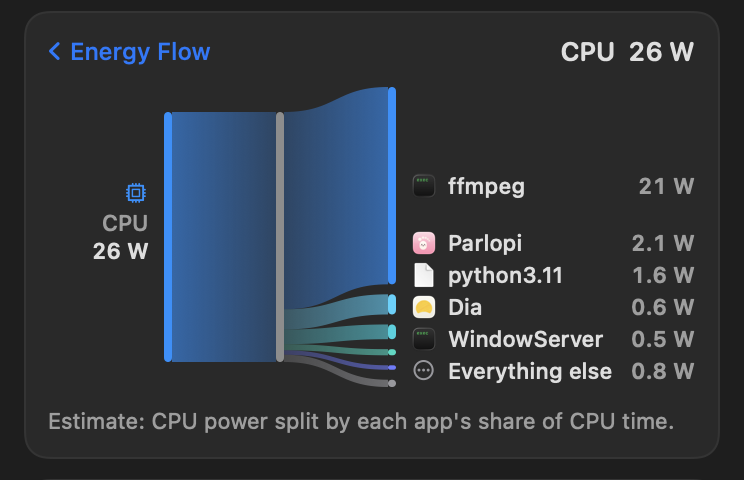
Click CPU or Memory to see which apps the power is going to. Click Display & other to see the chip rails that have their own sensor.
Quit the hogs
The apps using the most energy, memory and CPU, with per-core load and the memory breakdown. Hover a row to quit the app; hold Option to force quit.
Battery facts
Health, cycle count, temperature, time remaining, and how fast it is charging or draining right now.
No pulp fiction
It says which numbers are measured and which are worked out.
Most power apps show one confident figure per app. Your Mac can't measure that, so Juice labels every number by where it came from.
Power Facts
Refreshedevery second
- Measured From sensors
- Charger input, battery flow, total system load, CPU, GPU and memory power. No smoothing.
- Worked out By subtraction
- “Display & other” is the system total minus the measured chips. “Conversion loss” is what came in minus what was delivered.
- Estimated Labelled as such
- Per-app watts. CPU power is split by each app's share of CPU time.
- Not shown 0 guesses
- Per-app GPU power and a screen backlight figure. macOS doesn't report them.
Nothing leaves your Mac. No account, no tracking, no network requests.
Install
Three steps, about a minute.
- Download and drag Juice to Applications.Open it from there. The first time, macOS may ask you to confirm: System Settings › Privacy & Security › Open Anyway.
- Click the battery in your menu bar, then Install Helper.Changing power modes and stopping charging both need administrator rights, so macOS asks for your password once.
- Hide the system battery icon.System Settings › Control Centre › Battery › turn off Show in Menu Bar. Juice shows the same things and more.
Built and tested on an M4 Pro MacBook Pro running macOS 26. Other Apple silicon MacBooks should work, but haven't been tested; High Power Mode only exists on models that support it. The helper can do two things only: set the power mode and set the charge limit. If you use another charge limiter, such as AlDente, quit it first so the two don't fight. To remove Juice, open the panel while holding Option, choose Uninstall Helper, then quit and delete the app.